
You send cold email from Gmail, replies are landing, and you want to stop hand-typing the same three answers forty times a day. So you search how to automate cold email replies in Gmail and every result hands you the vacation responder or a canned template. Those are built for “I’m out of office,” not for a prospect who just asked what your pricing looks like.
That mismatch is the whole problem. Gmail has real automation built in, but it was designed for personal email, not for an outbound reply queue where the right answer depends on what the person actually said. This guide walks through exactly what you can automate natively, where each method hits a wall, and what to add when a filter can’t read intent.
What “automate cold email replies in Gmail” actually means
There are two very different jobs hiding under that phrase, and mixing them up is why most tutorials disappoint.
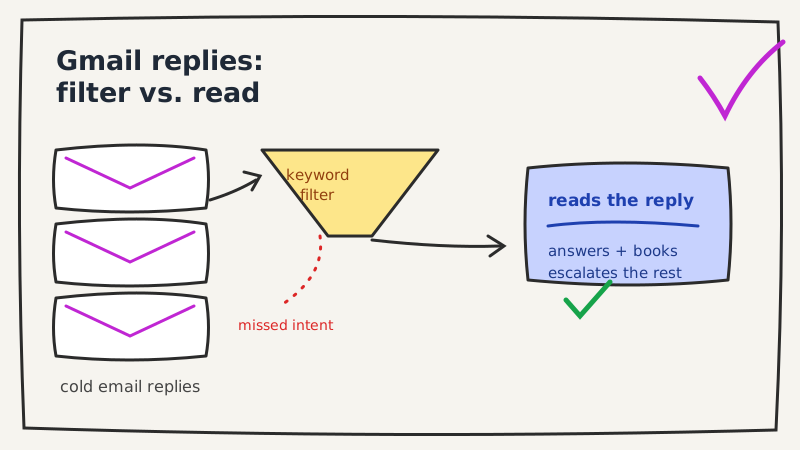
The first job is acknowledgement: send a fixed message when a reply arrives. That is trivial and Gmail does it well. The second job is handling: read the reply, understand what the prospect wants, and send the response that moves the deal forward. That is the job you actually care about, and it is the one native Gmail cannot do, because a filter matches keywords, it does not understand meaning.
Keep those two apart as you read. Native Gmail features are excellent at the first job and structurally incapable of the second. Knowing where the line sits tells you exactly when to stop configuring filters and reach for something that reads context.
Method 1: Gmail templates plus filters (the real native option)
The vacation responder gets all the attention, but it fires the same message to everyone and stamps you as absent, which is the last impression you want a warm prospect to get. The genuinely useful native path is templates combined with filters.
Here is the setup, step by step:
- Open Settings, go to the Advanced tab, and enable Templates. Save.
- Compose the reply you send most often (say, your one-line answer to “send me pricing”). In the compose window, click the three-dot menu, choose Templates, then Save draft as template.
- Go to Settings > Filters and Blocked Addresses > Create a new filter.
- Define the trigger. You can match the sending domain, words in the subject, or words in the body (for example
has the words: pricing OR cost OR "how much"). - On the next screen, check Send template and pick the template you saved.
Now any inbound reply that matches those words gets an instant, on-brand response with zero clicks from you. Build one filter per common reply type and you have covered a real slice of the queue.
The limits show up fast, though. Filters match strings, not meaning, so “your pricing looks fine” and “your pricing is a dealbreaker” trigger the same template. Gmail’s own rules also stop it from auto-replying to the same person more than once every four days, which protects you from loops but also means a multi-reply thread goes unanswered after the first hit. And a template is static text: it cannot pull the prospect’s name, reference the role they mentioned, or propose a time.
Method 2: The vacation responder, used deliberately
The vacation responder still has one legitimate cold email use: covering a genuine gap, like a weekend or a conference, when you would otherwise leave replies cold for two days. Speed matters more than most reps think, and a same-minute holding reply beats a two-day silence. We covered why that response window moves deal outcomes in how 5-minute response times increase conversions.
Set it to reply to contacts only so you are not auto-answering cold inbound, keep it short, and give a real next step (“I’ll have a full answer to you Monday morning, or grab a time here”). What it must never be is your everyday reply engine. A prospect who gets an “I’m away” bounce to a buying question reads it as “this company is asleep,” and you have taught them to go quiet. For a proper approach to off-hours replies, see how to handle after-hours cold email replies with AI.
Method 3: DIY plumbing with Zapier or n8n
Search long enough and you will find Zapier and n8n templates that watch a Gmail label, pass the reply to an AI model, and post a draft back. These work, and if you enjoy maintaining automations they are a fair option.
Be honest about the cost, though. You are now the systems integrator: you own the prompt, the label logic, the error handling when the model returns nonsense, the API keys, and the on-call when a silent failure means a hot lead sat for a day. You also lose the safety rail of a human checkpoint unless you build one. For a solo operator sending low volume this is fine. For a team where a missed reply is lost pipeline, you have built a fragile dependency that no one owns on a bad week.
Native versus a reply layer: where the line sits
Here is the honest comparison once you line the options up against what a cold email reply queue actually demands.
| Capability | Templates + filters | Vacation responder | AI reply layer |
|---|---|---|---|
| Instant acknowledgement | Yes | Yes | Yes |
| Reads what the reply means | No | No | Yes |
| Personalizes each response | No | No | Yes |
| Proposes and books a meeting time | No | No | Yes |
| Handles a back-and-forth thread | No (four-day cap) | No | Yes |
| Escalates the tricky ones to a human | Manual | No | Yes, by rule |
| Setup effort | Low | Low | Low |
| Ongoing ownership | You | You | Managed |
The pattern is clear. Native Gmail wins on acknowledgement and loses on everything that requires understanding the reply. That is not a knock on Gmail. It is a mail client doing exactly what a mail client should, and no more.
Adding a layer that reads intent instead of keywords
When filters stop being enough, the fix is not to abandon Gmail. It is to add a layer on top that reads the actual reply, decides what it means, and drafts or sends the right response, while your outbound still runs from the same Gmail inbox.
This is what an AI reply agent does, and it is the exact gap the native tools leave open. Instead of matching the word “pricing,” it recognizes that the prospect is price-sensitive but still engaged, answers the question, and offers to walk them through it on a call. Instead of firing once and going silent, it holds a thread across several messages. Instead of treating “not right now” and “not interested” as the same string, it handles each on its own path. Underfive connects to your Gmail and does this handling automatically, so the replies your filters could never read get a real answer in minutes.
Two things make this safe to hand off rather than nerve-wracking:
- Rules-based escalation. You decide which replies the agent sends on its own (a scheduling link, a case study, a simple pricing answer) and which it routes to a human with the context attached. A confused prospect or a legal question never gets an auto-answer it should not.
- Deliverability that respects the inbox. Because replies are timely, human-sounding, and sent from your real Gmail, they read as normal conversation to inbox providers rather than as blast automation. We dug into why that matters in do AI reply agents hurt email deliverability.
If you want the fuller version of the routing logic (classify, respond, escalate) independent of any one tool, we mapped it in the cold email reply automation workflow. And you can see the specific handling capabilities on the Underfive features page.
A practical setup for a team on Gmail today
You do not have to choose one method. The strongest setup layers them:
- Filters and templates for the truly mechanical replies (a bare “unsubscribe,” a simple “thanks”).
- A reply layer for everything that needs the message to be read: pricing questions, “send me info,” objections, scheduling.
- Human escalation rules so anything ambiguous, high-value, or sensitive lands in front of a person with the thread already summarized.
That combination gives you instant coverage on the easy replies, a real answer on the hard ones, and a person on the judgment calls, all without leaving Gmail.
The mistake to avoid is stretching native filters to do a job they were never built for and then blaming yourself when a warm reply gets a robotic template. Automate the acknowledgement with Gmail’s own tools, and put a layer that reads intent behind the replies that decide whether a deal moves. Start by listing the five replies you type most this week: the ones that are pure boilerplate go to a filter, and the ones where the wording changes your answer are exactly the ones worth automating with something that can read.