What Access Does an AI Inbox Agent Actually Need?
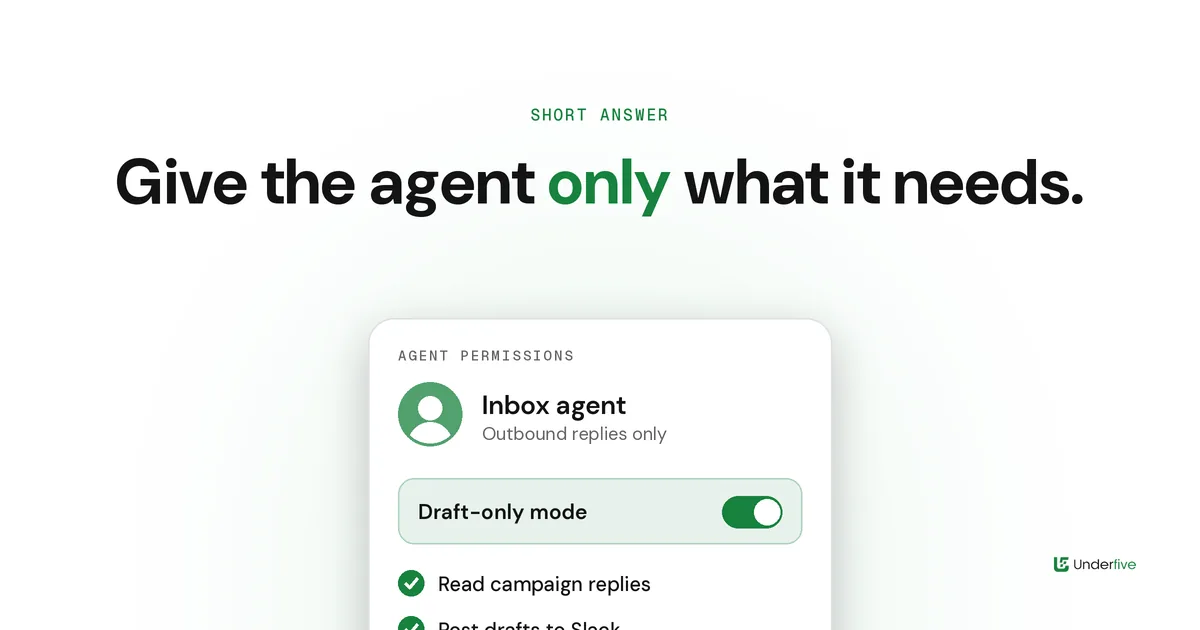
An AI inbox agent needs three things: access to the replies your outbound generates, a way to post its drafts to wherever your team approves them, and permission to send approved replies from the mailbox or profile that started the thread. It rarely needs your whole mailbox, your full calendar or admin rights to anything. Give it the narrowest access that lets it do the job, and widen it only when you have a reason.
Start from the job, not the integration screen
It is tempting to click “allow all” when connecting a new tool. A better approach is to write down what the agent does and grant access for each step:
- Read new replies to your campaigns.
- Understand the thread and the prospect, which needs the original message and basic lead details.
- Draft a reply using your approved answers and playbook.
- Ask a person to approve, edit or reject the draft.
- Send the approved reply from the right identity.
- Record the outcome, such as a meeting booked or an opt-out.
Anything that does not serve one of those steps is access you can leave out.
Access by job
| Job | Access it needs | Access it does not need |
|---|---|---|
| Read replies | Replies to your outbound, through your sending tool or the sending mailboxes | Personal or internal email |
| Draft replies | Thread history, lead fields, your approved answers | Your full CRM history |
| Get approval | Post to a chosen Slack channel | Access to every Slack channel |
| Send | Send from the original mailbox or LinkedIn profile | Ability to create new senders |
| Book meetings | Check availability and add events to a booking calendar | Read the contents of every meeting |
| Record outcomes | Update lead status, suppress opt-outs, log notes | Delete records or change pipeline settings |
Keep humans on the send button at first
The simplest safety control is not a permission at all. It is approval. When an agent drafts a reply and sends it to Slack, a person approves, edits or rejects it before anything goes out. That means a mistake in the draft costs a few seconds of review rather than a bad email to a prospect.
Most teams start with every reply type on approval, then move low-risk types, such as out-of-office replies, to lighter review once the drafts have proved reliable. Our guide to who should approve AI-drafted replies covers how to split that review.
Questions to ask any vendor
- Where do replies come from? Your sending tool’s connection, the mailboxes directly, or both?
- Which Slack channels can it post to? Ideally only the ones you choose.
- Can it send without approval? You should be able to decide per reply type.
- What does it write back? Opt-outs should be suppressed in the sending tool, not just closed in the inbox.
- Can access be removed cleanly? Disconnecting should stop reading and sending straight away.
- Is each client kept separate? For agencies, a draft for one client must never be able to go out under another client’s identity.
Where Underfive fits
Underfive is a unified inbox for outbound replies across email and LinkedIn. Its inbox agents draft replies and send them to Slack for approval, and a person approves, edits or rejects each draft before it goes out from the original sender. You decide which reply types need approval as your trust in the drafts grows.
FAQ
Does an AI inbox agent need access to my personal inbox? It should not need to. Scope it to the mailboxes and tools you use for outbound. If your outbound runs from personal mailboxes, keep the scope to the outbound threads where possible.
Is it safer to let the agent draft but not send? Yes, while you build trust. Draft-only with approval in Slack keeps a person in control of every message that goes out.
What about CRM access? Give it enough to read basic lead details and write outcomes, such as meeting booked or opted out. It does not need permission to delete records or change pipeline settings.
Who should own the connection? A named admin on your side, not the person who happened to set it up. That way access can be reviewed and removed when people change roles.
The bottom line
Scope an AI inbox agent to the job it does: read outbound replies, draft, ask for approval, send from the original sender and record the outcome. Keep approval on while you build trust, and review access whenever your team or tools change.